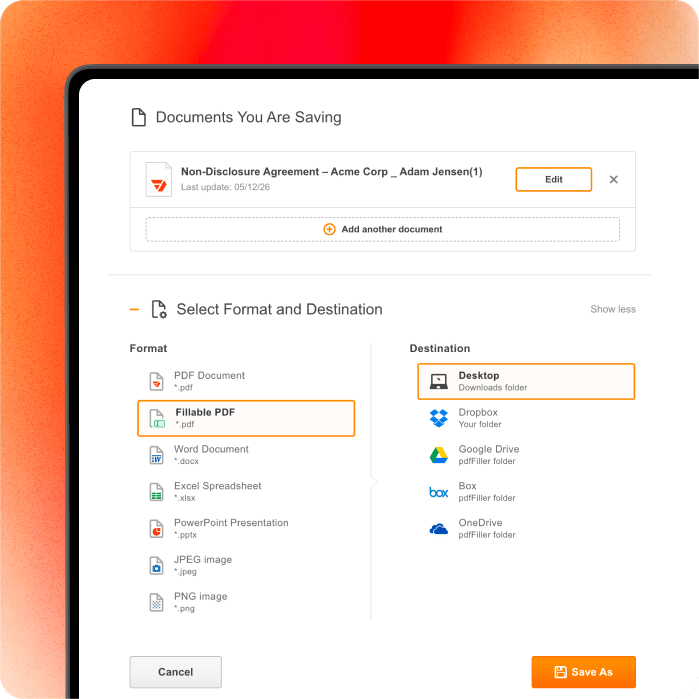
Convert Word to PDF and Lock PDF for Computer
Convert Word documents to PDF easily and secure them with pdfFiller.
What Does the Conversion Tool Do?
pdfFiller's conversion tool allows you to convert Word to PDF format effortlessly. This tool is designed to create secure documents, ensuring that your sensitive information remains protected. You can access the conversion tool without needing to install any software, making it incredibly convenient. It works seamlessly on any device, whether you are using a computer, tablet, or smartphone.
Why Format Matters for Your Workflow
Converting to PDF is essential because the PDF format preserves formatting across different devices. This ensures that your documents look the same regardless of where they are viewed. Additionally, PDFs make sharing and collaboration easier, as they are widely accepted and can be opened on virtually any platform. This format is particularly important for legal and professional documents, where maintaining the integrity of the content is crucial.
How to Access the Convert Tool
- Access the conversion tool via the Done dropdown menu on the pdfFiller dashboard.
- Use the All Tools card on the dashboard to find the conversion option.
- Click on the More menu in the document row for quick access to conversion features.
Steps to Convert Word to PDF
- Upload your Word document by clicking the upload button on the interface.
- Select the conversion option to initiate the process of convert Word to PDF.
- Download the converted PDF file once the conversion is complete.
- Lock the PDF for security to prevent unauthorized access to your document.
Supported Output Formats
The primary output format for the conversion tool is PDF. However, pdfFiller also supports other formats for conversion, ensuring compatibility with various devices and applications. This flexibility allows you to choose the best format for your specific needs.
Accepted Input File Types
pdfFiller accepts Word documents in .doc and .docx formats, among other common file types. There are no restrictions on file size, allowing you to convert documents of any length without worry. This makes it easy to handle various document types efficiently.
What to Expect from the Converted File
When you convert Word to PDF, you can expect high fidelity for native documents. However, be aware that OCR limitations may affect the quality of scanned files. The layout fidelity of the converted PDF may vary depending on the complexity of the original document, so it's important to review the final output.
How Convert Differs from Other Methods
Using pdfFiller's conversion tool differs from simply using the Save As feature in Word. While Save As may not always maintain formatting, the conversion tool ensures that your document retains its original layout and design. This method is preferable in situations where document integrity is critical, such as in legal or professional settings.
Scenarios for Converting Word Documents
There are several real-world scenarios where converting Word documents to PDF is beneficial. Legal professionals often need to create secure documents for court submissions. Businesses may require PDF versions of reports and presentations for sharing with clients or stakeholders. Freelancers frequently create contracts for clients, ensuring that the documents are both professional and secure.
Browser and Device Compatibility
pdfFiller's conversion tool works on all major browsers, ensuring that you can access it regardless of your preferred platform. It is accessible on both Mac and Windows operating systems, and there is a mobile-friendly interface available for users on the go. This compatibility makes it easy to convert documents from anywhere.
Next Steps After Conversion
After converting your document, you have several options for managing the PDF. You can edit the PDF to make any necessary changes, share the converted file with others, or lock the PDF for added security. These steps ensure that your document remains protected and meets your specific needs.
How Does pdfFiller Compare?
Adobe Acrobat offers extensive features but can be costly for small businesses. pdfFiller provides essential tools at a more affordable price.
Smallpdf is user-friendly but lacks advanced features like document locking. pdfFiller combines ease of use with robust security options.
Nitro is great for team collaboration but requires installation. pdfFiller works directly in the browser with no setup needed.