Convert Word to PDF and Reorder PDF for Safari
Convert Word documents to PDF quickly and reorder PDFs using pdfFiller in Safari. Enjoy a seamless experience without any software installation.
What is the PDF Conversion Tool?
The PDF conversion tool allows you to convert Word to PDF and more, making it an essential resource for small businesses. You can access it easily via the Done dropdown or the All Tools section, ensuring that you can convert documents without any software installation. This tool is designed to simplify document management, making it ideal for professionals who need efficient solutions.
Why Convert Word to PDF?
Converting Word documents to PDF ensures document integrity, making it easier to share and access files across different platforms. The PDF format preserves formatting, which is crucial for professional use, ensuring that your documents look the same regardless of where they are viewed. This conversion is particularly important for small and medium-sized businesses that require reliable document management.
How to Access the Conversion Tool
You can easily access the conversion tool to convert Word to PDF through three main methods: the Done dropdown, the All Tools card, and the More menu option in the document row. These quick access points allow you to find and use the conversion tool without any confusion, streamlining your document workflow.
Uploading Documents for Conversion
To convert Word files to PDF, you can upload various document types. The tool supports automatic conversion for non-PDF files upon upload, making the process user-friendly. You do not need any technical setup to get started, allowing for efficient file management right from the beginning.
Step-by-Step Instructions for Conversion
- Log in to your pdfFiller account on Safari.
- Click on the Done dropdown or navigate to the All Tools card.
- Select the option to convert your document.
- Upload your Word document that you wish to convert.
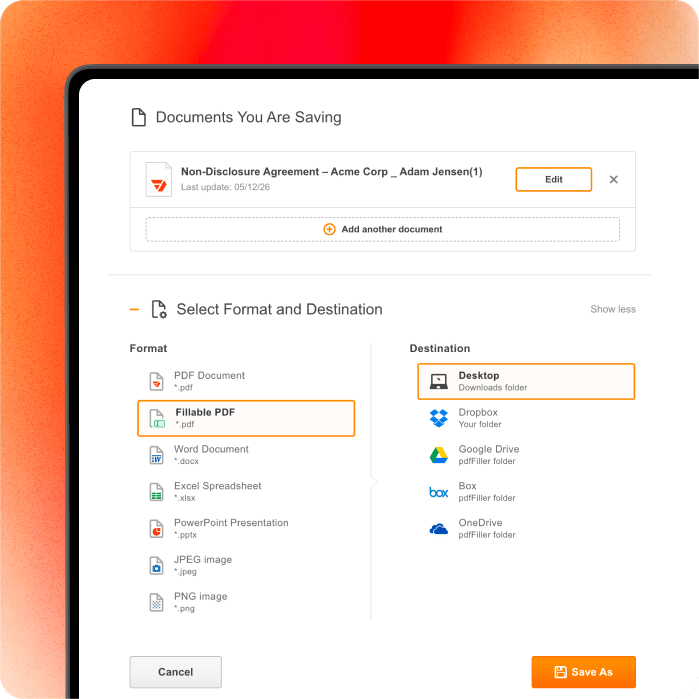
- Choose the output format as PDF from the available options.
- Click on the convert button to start the process.
- Wait for the conversion to complete, which happens immediately after processing.
- Download your newly converted PDF file to your device.
Supported Output Formats
- PDF (.pdf) - the primary output format for document conversion.
- Word (.docx) - for those who need to revert back to Word format.
- Excel (.xlsx) - useful for extracting data into spreadsheets.
- PowerPoint (.pptx) - for presentations.
- Images (.jpg, .png) - for visual content extraction.
Quality of Converted Files
When you convert Word files to PDF, you can expect high layout fidelity, especially with native PDFs. However, keep in mind that scanned PDFs may have limitations, such as lower text editability unless OCR is applied. Understanding these quality aspects helps ensure that your documents meet your expectations after conversion.
Comparing Conversion Methods
The conversion tool differs from other methods like Save As and Download in that it offers a more comprehensive approach to document management. While Save As may only create a copy of the document, the conversion tool ensures that the format is preserved for professional use. Choosing the conversion tool can enhance your workflow by providing a reliable output format.
Scenarios for Using the Conversion Tool
For small businesses, converting Word documents to PDF can streamline client communications, ensuring that all shared documents maintain their intended format. Professionals in legal fields can benefit from converting contracts and agreements to PDF for secure sharing. Additionally, educators can convert lesson plans and materials to PDF for easy distribution to students, showcasing the versatility of this tool across various industries.
Browser Compatibility and Access
The conversion tool works effectively across major browsers, including Safari, ensuring that you can convert Word to PDF on any device. You can access pdfFiller on mobile devices without the need for installation, making it a convenient option for professionals on the go. The user-friendly interface enhances the overall experience, allowing for quick document management.
Security Measures During Conversion
pdfFiller takes document security seriously during the conversion process. All files are handled with strict data protection protocols to ensure user privacy. You can trust that your documents are secure while being converted, allowing you to focus on your work without worrying about data breaches.
Next Steps After Conversion
After converting your Word documents to PDF, you can edit the PDFs directly within pdfFiller. You also have options for sharing the converted files with colleagues or clients. Integrating this conversion tool with other pdfFiller features allows for a comprehensive document management experience, encouraging you to explore more tools available on the platform.
How Does pdfFiller Compare?
Adobe Acrobat offers extensive features but can be complex and costly for small businesses. Users may find pdfFiller more straightforward and affordable.
ilovepdf provides basic conversion tools but lacks the comprehensive features of pdfFiller. Users might miss advanced functionalities.
Smallpdf is user-friendly but limited in document management capabilities. pdfFiller offers a more integrated solution for SMBs.