Reduce Font Size in PDF on iPhone
Reduce font size in PDF documents on your iPhone easily using pdfFiller.
What is Edit Mode for PDFs?
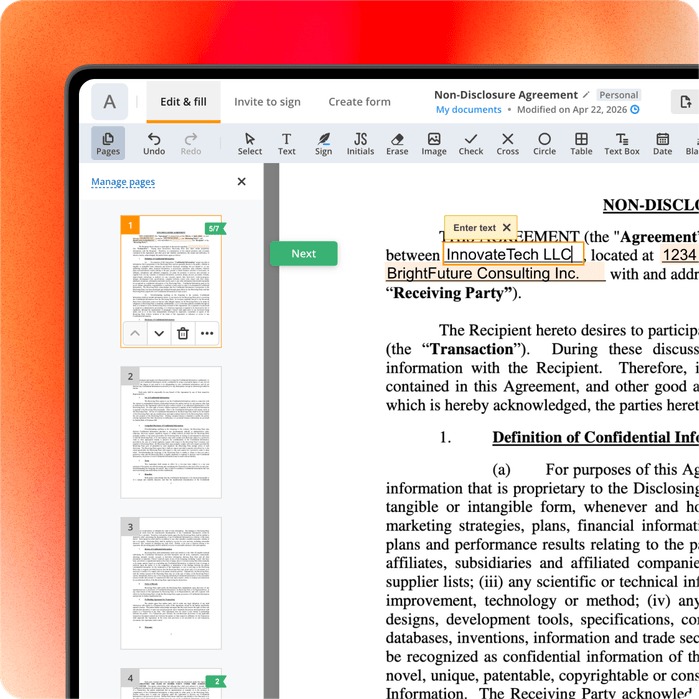
Edit Mode is a feature that allows you to modify PDF documents directly. You can access it via the Edit button in the toolbar, which enables you to directly modify document content without any IT setup required. This mode works on any device, making it accessible for small and medium businesses. With Edit Mode, you can easily reduce font size in PDF documents, ensuring that your text fits perfectly within your layout. The simplicity of this tool means you don’t need complex software requirements to edit your PDFs, making it a user-friendly option for everyone.
How to Access Edit Mode on iPhone
To enter Edit Mode for PDF editing on your iPhone, locate the Edit button in the toolbar. Ensure that your document is in an editable format, as this is crucial for accessing the features. This functionality is compatible with iOS devices, and the best part is that no installation is needed. By following these steps, you can quickly reduce font size in PDF documents and make necessary adjustments without any technical jargon getting in the way.
Editing Existing Text in PDFs
Editing existing text in PDFs is straightforward. Click on the text blocks you wish to edit, and you can navigate between text elements easily. Changes made in Edit Mode are saved automatically, which is a significant advantage for users. This feature works on native PDFs, allowing you to reduce font size in PDF documents efficiently. The process is designed to avoid complicated editing procedures, making it accessible for all users.
Adding New Text Blocks to PDFs
To insert new text into a PDF, follow these steps to add free-floating text blocks. Initially, you will have access to various formatting options, allowing you to position text anywhere on the document. This feature is ideal for adding annotations and notes, giving you the flexibility to enhance your document's content. You can easily reduce font size in PDF documents by adjusting the new text blocks to fit your layout perfectly.
Removing Text from PDFs
To delete text from a PDF document, select the text you wish to remove easily. You will need to confirm your deletion actions to ensure accuracy. This feature works on both native and scanned PDFs, providing versatility in editing. Importantly, no permanent changes will occur until you save the document, allowing you to make adjustments without the fear of losing original content. This method makes it simple to reduce font size in PDF documents by removing unnecessary text.
Using the Whiteout Tool
The Whiteout tool is designed to cover text in PDFs for corrections. It is essential to understand the difference between Whiteout and Blackout; Whiteout allows you to make corrections without permanently removing the content. To apply Whiteout effectively, follow the steps provided in the tool. This method is ideal for making corrections and is a non-destructive editing method, ensuring that you can still access the original text if needed.
Text Formatting Options Available
When editing PDFs, you have various text formatting options available. You can choose from different font families and sizes, as well as apply bold, italic, and underline features. Additionally, you can adjust text color and alignment settings, ensuring that your document looks professional. Easy access to formatting tools allows you to reduce font size in PDF documents without hassle, making your editing process efficient.
Find and Replace Text in PDFs
To locate and replace text in a PDF, use the Find & Replace tool. This feature offers significant benefits for quick text updates, saving you time during editing. It works on both native and scanned PDFs, allowing for comprehensive text management. By utilizing this tool, you can efficiently reduce font size in PDF documents while ensuring that all necessary text is updated accurately.
Navigating Native vs. Scanned PDFs
Understanding the differences in editing capabilities between native and scanned PDFs is crucial. Editing capabilities are generally more robust on native PDFs, while scanned PDFs may have limitations. The importance of OCR (Optical Character Recognition) for scanned documents cannot be overstated, as it enables text recognition for editing. Best practices for editing include ensuring that your documents are in the correct format before attempting to make changes.
Browser Compatibility for PDF Editing
When using pdfFiller, it is essential to know about browser and device support for editing. Supported browsers include all major options, and no installation is required, which enhances accessibility. You can access pdfFiller from any device, ensuring cross-platform functionality. This compatibility allows you to reduce font size in PDF documents regardless of the device you are using.
Limitations of Edit Mode
While Edit Mode offers many features, it is important to understand its limitations. You cannot edit scanned PDFs without OCR, which can restrict your editing capabilities. Additionally, there is no guaranteed font matching, and limitations exist on password-protected documents. Not all features are available in free access, which may affect your editing experience.
Security and Data Handling in pdfFiller
pdfFiller ensures document security through secure handling of documents during editing. The platform complies with data protection regulations, and user privacy measures are in place to protect your information. Encryption methods are used to safeguard your documents, providing peace of mind while you reduce font size in PDF documents and make other edits.
Comparison with Other PDF Editors
How does pdfFiller compare to other tools? Adobe Acrobat offers extensive features but requires a steep learning curve and higher costs. Foxit provides good editing tools but lacks the same level of user-friendliness and template access. Nitro has strong editing capabilities but is limited in mobile functionality compared to pdfFiller, making pdfFiller a more accessible choice for small and medium businesses.
Next Steps for PDF Editing
To enhance your PDF editing experience, consider integrating editing with other pdfFiller features. Document management is crucial, and exploring templates can streamline your workflow. pdfFiller makes it easy to share edited documents, ensuring that your team can collaborate effectively. By connecting editing actions to broader workflows, you can maximize the benefits of using pdfFiller.