Remove Password from PDF and Encrypt PDF for Windows
Remove passwords from your PDFs and encrypt them easily with pdfFiller, ensuring document security without technical hassles.
What is Protect Document?
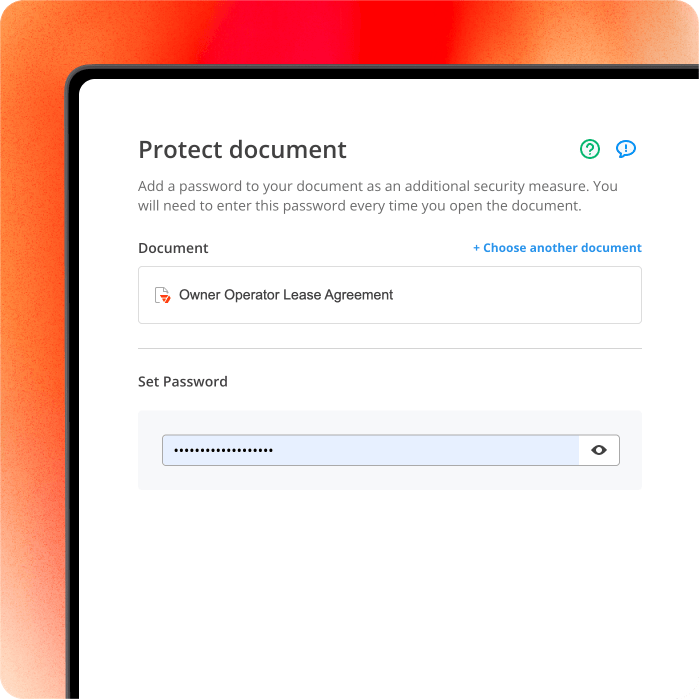
The Protect Document feature in pdfFiller allows you to secure your PDFs effectively. This feature adds a password to open PDFs, which can be applied to the entire document or specific pages. It is designed with a user-friendly interface, making it accessible for small and medium businesses. You won't need any IT setup to use this feature, ensuring a straightforward experience. Unlike complex software solutions, pdfFiller simplifies the process of password protection, enabling you to secure PDFs without hassle.
How to Access Protect Document
- Navigate to the Tools section in the menu of pdfFiller.
- Select the Protect Document option from the available tools.
- This feature is accessible on all devices, including desktops and mobile devices.
- No additional software is needed to use the Protect Document feature.
Steps to Add a Password to a PDF
- Select the document you wish to protect from your files.
- Choose whether to apply the password to the entire document or specific pages.
- Enter a strong password and click Apply to set the protection.
- Receive confirmation that the document has been successfully protected.
How to Open a Password-Protected PDF
- Locate the password-protected PDF file you wish to access.
- Enter the correct password when prompted to unlock the document.
- Once the password is entered correctly, access to the document is granted.
- If you forget the password, consider troubleshooting tips for recovery.
Protecting Specific Pages vs. Entire Document
When using pdfFiller, you have options for full document protection or protecting specific pages. Full document protection ensures that the entire file is secured, which is ideal for sensitive information. On the other hand, protecting specific pages allows for flexibility, enabling you to secure only the most critical sections of a document. This can be particularly useful in scenarios where certain information needs to remain accessible while other parts are restricted. Understanding these options helps you choose the best approach for your document security needs.
The Confidential Folder Feature
The Confidential Folder feature in pdfFiller enhances your document security by requiring phone verification for access. This ensures that only authorized individuals can view sensitive files. Additionally, you can set a custom password for this folder, which hides documents from main lists, providing an extra layer of security. This feature is particularly beneficial for storing sensitive files that require enhanced protection, ensuring that your confidential documents remain secure.
Creating a Read-Only PDF for Recipients
To create a read-only PDF, follow these steps: first, select the document you want to share. Next, apply the read-only settings to prevent any editing. This is particularly useful for legal and financial documents where you want to maintain the integrity of the content. Communicate these restrictions clearly to recipients, ensuring they understand that they can view but not modify the document. This approach protects your original content while allowing for necessary sharing.
Password Protection on Download vs. Shared Link
Password protection can differ based on whether a PDF is downloaded or shared via a link. When a PDF is downloaded, the password must be entered to access the file directly. In contrast, a shared link may allow for different security protocols, depending on how the link is configured. Understanding these differences is crucial for ensuring that your documents are shared securely while maintaining control over access.
When to Password-Protect a PDF
There are specific scenarios where password protection is essential. For example, legal contracts and sensitive documents should always be secured to prevent unauthorized access. The implications of not protecting such documents can be severe, leading to potential legal issues or data breaches. Best practices for document security include applying passwords to any files containing sensitive information, especially for small and medium businesses that handle confidential data regularly.
Browser and Device Compatibility
Password protection on PDFs works across various browsers and devices. Supported browsers include Chrome, Firefox, and Safari, ensuring a wide range of compatibility. However, mobile devices may behave differently, so it’s important to test the functionality on different platforms. For optimal use, ensure that you are using the latest version of your browser and the pdfFiller application to avoid any issues with document security.
Limitations and Known Constraints
While password protection is a valuable feature, there are limitations to be aware of. The maximum password length may restrict the complexity of your passwords. Additionally, pdfFiller adheres to specific encryption standards to secure your documents. Be mindful of plan tier limitations, as certain features may not be available on lower tiers. Knowing these constraints helps you make informed decisions about your document security strategy.
Comparison with Alternatives
How does pdfFiller compare with other tools? ilovepdf offers basic password protection but lacks advanced features like the Confidential folder, making it less secure for sensitive documents. Smallpdf provides a simple interface for password protection but can be limited in functionality compared to pdfFiller's comprehensive tools. Adobe Acrobat is known for robust features but often comes with a higher price tag and complexity, which may overwhelm small businesses. pdfFiller stands out for its ease of use and affordability, making it a preferred choice for many.
Next Steps for Document Security
Now is the time to try the Protect Document feature in pdfFiller. Securing your PDFs is straightforward, with no software installation required. Explore the other features available to enhance your document management experience. With pdfFiller, you can ensure your documents are secure while enjoying a user-friendly interface designed for your needs.