Password Protect PDF
Protect your PDF documents with a password using pdfFiller. Secure sensitive information and control access easily from any device.
What is Password Protection for PDFs?
Password protection for PDFs involves adding a password that must be entered to open a document. This feature is essential for small and medium-sized businesses that handle confidential documents, such as legal contracts, HR documents, and financial records. By implementing password protection, you ensure that only authorized individuals can access sensitive information, thereby enhancing PDF security and safeguarding personal IDs.
How to Access the Protect Document Feature
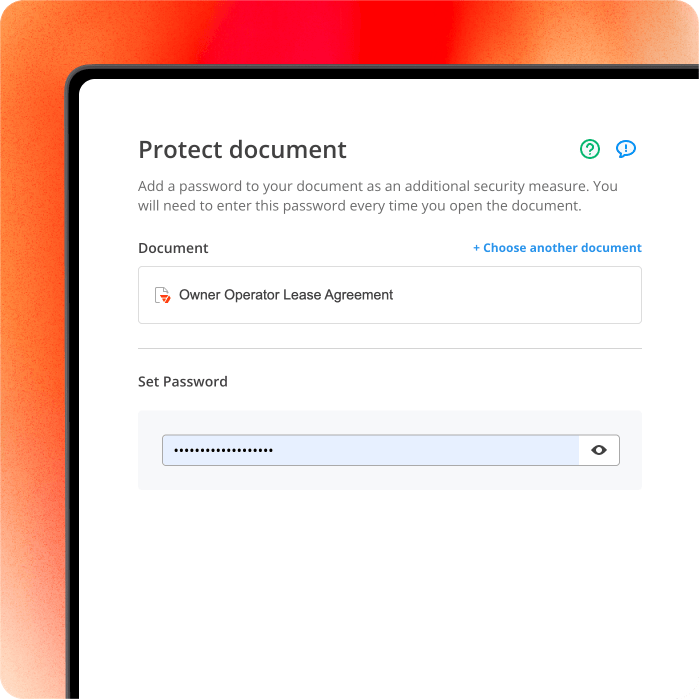
To access the Protect Document feature in pdfFiller, navigate to the Tools menu and select Protect Document. This feature is available on any device, making it user-friendly for professionals who need to secure documents on the go. Whether you are working from a desktop or a mobile device, you can easily find this feature to password protect your PDF.
Steps to Add a Password to a PDF
- Open your PDF document in pdfFiller.
- Navigate to the Tools menu and select Protect Document.
- Choose whether to protect the entire document or specific pages.
- Enter a strong password that meets security standards.
- Click Apply to enforce the password protection.
- Save your document to ensure the password is set.
- Test the password by attempting to open the document again.
- Share the document securely with authorized individuals only.
How to Open a Password-Protected PDF
- Locate the password-protected PDF file on your device.
- Open the document in pdfFiller.
- When prompted, enter the correct password.
- Click OK to access the document.
- If you forget the password, you will need to contact the document owner.
Protecting Specific Pages vs. Entire Document
When deciding to password protect a PDF, you can choose to secure the entire document or only specific pages. Protecting specific pages is beneficial for scenarios where only certain sections contain sensitive information, allowing for more flexible document management. On the other hand, full document protection is ideal for comprehensive security, ensuring that all content remains confidential.
The Confidential Folder Feature
The Confidential folder in pdfFiller allows you to securely store sensitive documents. Access to this folder requires phone verification and a custom password, ensuring that only authorized users can view its contents. This feature enhances document management by isolating sensitive files from the main document lists, providing an additional layer of security.
Creating a Read-Only PDF for Recipients
To restrict editing for shared PDFs, you can create a read-only version using the Protect Document feature. This process allows you to share documents without the risk of unauthorized changes, making it ideal for contracts and agreements that need to remain intact. Recipients will be able to view the document but will not have editing capabilities.
When to Password Protect a PDF
Password protection is particularly important for legal contracts, HR documents, financial records, tax forms, and personal IDs. These types of documents often contain sensitive information that requires safeguarding against unauthorized access. By implementing password protection, you can ensure that only the intended recipients can view the contents.
Browser and Device Compatibility
pdfFiller's password protection feature is compatible with all major browsers and mobile devices. This ensures that you can easily password protect your PDFs regardless of the platform you are using. However, it is important to be aware of any limitations that may arise from using older browser versions or specific mobile operating systems.
Limitations of Password Protection
While password protection enhances PDF security, there are some limitations to consider. The maximum password length is restricted, and the encryption standards used may vary based on your subscription plan. Additionally, password protection does not prevent printing or screenshots, so it is essential to understand these constraints when securing your documents.
How Does pdfFiller Compare?
pdfFiller offers a comprehensive password protection feature that is user-friendly and accessible across devices. In comparison, ilovepdf provides basic password protection but lacks advanced features like the Confidential folder, making it less secure for sensitive documents. Smallpdf offers a simple interface for password protection but does not support selective page protection, limiting flexibility for users needing specific document security. Adobe Acrobat is known for its robust features but often requires complex setups and higher costs, making pdfFiller a more affordable and straightforward option for small businesses.
Next Steps to Secure Your PDFs
Start using the Protect Document feature in pdfFiller today to secure your PDFs in minutes. With no software to install, you can easily password protect your documents and ensure that sensitive information remains confidential. Take control of your document security now!