Unlock PDF and Convert PDF to PPT for Website For Free

Drop document here to upload
Select from device
Up to 100 MB for PDF and up to 25 MB for DOC, DOCX, RTF, PPT, PPTX, JPEG, PNG, JFIF, XLS, XLSX or TXT

Last updated on Sep 16, 2026

Unlock PDF and Convert PDF to PPT for Website

Unlock PDF files quickly and convert them to PPT using pdfFiller.

What is Unlocking a PDF?

Unlocking a PDF refers to the process of removing restrictions placed on a PDF document, allowing users to access its content freely. This is particularly important for business documents that may contain vital information needed for operations. For small businesses, being able to unlock PDF files can significantly enhance workflow efficiency, enabling quick access to necessary documents without the hassle of complex software or processes.

How to Access the Unlock PDF Feature

  • Navigate to the Tools menu in pdfFiller.
  • Select the Unlock PDF option from the available tools.
  • Ensure you are using a compatible device, as this feature is available on all devices.

Steps to Unlock a PDF

  • Enter the password associated with the PDF document.
  • Confirm the unlock action to proceed with removing the restrictions.
  • After unlocking, you will have access to various options for editing or converting the document.

When to Unlock a PDF

Unlocking a PDF is necessary in several scenarios, such as when dealing with legal documents or business contracts that require immediate access for review or modification. In legal and financial contexts, the ability to unlock these documents can greatly impact workflow efficiency, ensuring that critical information is readily available when needed.

Browser Compatibility for Unlocking PDFs

To unlock PDFs effectively, it is essential to know the supported browsers. Most modern browsers, including Chrome, Firefox, and Safari, are compatible with the unlocking feature. Additionally, mobile access is available, allowing users to unlock PDFs on both smartphones and tablets, ensuring a consistent user experience across devices.

Limitations of Unlocking PDFs

There are some limitations to consider when unlocking PDFs. For instance, the maximum password length may restrict certain documents, and some types of documents may have additional restrictions that prevent unlocking. Security considerations are also important, as strong passwords may not be easily removed, impacting the ability to access the document.

Next Steps After Unlocking a PDF

Once you have successfully unlocked a PDF, you can proceed with several options. You can edit the unlocked PDF to make necessary changes, convert it to other formats like PPT for presentations, or share the document with colleagues or clients directly from pdfFiller.

Mobile Access for Unlocking PDFs

Unlocking PDFs on mobile devices is straightforward. To do this, open the pdfFiller app or website in your mobile browser. Follow the same steps as on a desktop to unlock the PDF. The mobile experience is designed to be user-friendly, ensuring that you can manage your documents effectively on the go.

Final Thoughts on Unlocking PDFs

Unlocking PDFs offers numerous benefits, including improved access to important documents and enhanced workflow efficiency. pdfFiller's unlocking feature is designed to be user-friendly, making it easy for small and medium-sized businesses to manage their documents effectively. With a high level of user satisfaction, you are encouraged to try this feature and experience the convenience it brings to your document management processes.

Try most popular PDF tools

Discover a full set of tools to handle any document task.

Edit PDFs

Make quick PDF edits online.

Sign

Add legally binding signatures.

Merge

Combine multiple PDFs.

Request signatures

Send a document for signing.

Convert

Transform PDFs into other formats.

Rearrange

Change the order of pages.

Share

Send PDFs for review or editing.

Compress

Reduce PDF file sizes.

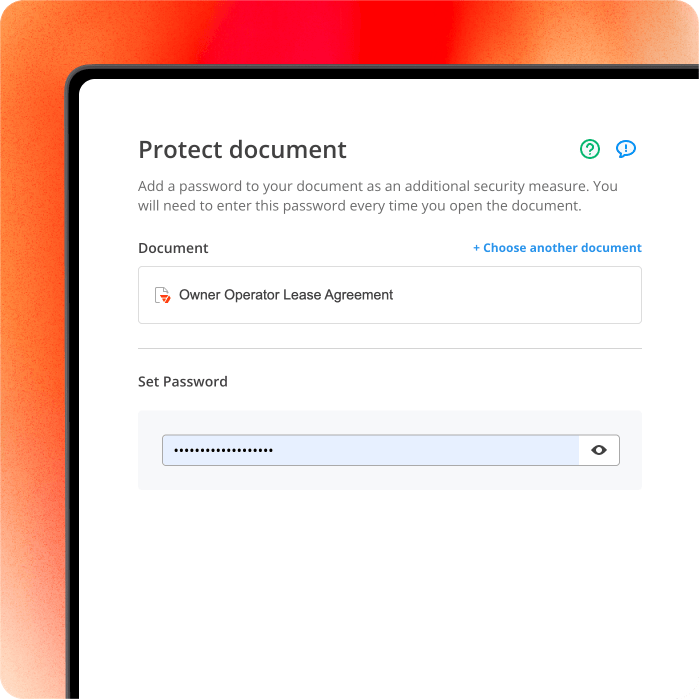
How to protect a PDF with a password?

1. Upload

Keep your documents confidential

  • Edit, then lock it down Edit text, add images, or fill out forms to complete your PDF. After, create a password to lock down the final version and prevent unauthorized access.
  • eSign and protect After you’ve signed an agreement, protect it with a password to ensure its integrity and keep its contents confidential.
  • Verify signers Sending a document for signing? Add an extra layer of security by setting a unique password or sending a one-time SMS code to your recipients before they can eSign.
  • Share with confidence Send sensitive files without the stress. Add a password before you share via link or email, ensuring only the right people can access your document.
  • Your digital cabinet—secured Keep all documents neatly organized in your secure cloud storage. Move sensitive files, such as contracts or personal records, to a confidential folder accessible only via password.

Who uses this tool?

Learn how professionals use pdfFiller to keep sensitive information safe.

Business Owners

Add a password to confidential documents to safeguard your company’s critical data. Ensure that only authorized partners, investors, or team members can access proprietary information, protecting your business from data leaks.

  • Business plans
  • Financial reports
  • Investor agreements
  • Strategic plans
Business Owners
  • G2 — Users Most Likely To Recommend
  • G2 — Grid Leader in Small-Business
  • G2 — High Performer
  • G2 — Regional Leader
  • G2 — Easiest To Do Business With
  • G2 — Best Meets Requirements
  • G2 — Best Support

pdfFiller scores top ratings on review platforms

pdfFiller is rated 4.6 out of 5 stars across 1,000+ G2 reviews.

so easy to use...found this easier than DocuSign
Cheryl D
This worked really well. I really liked it. Scott Nelson, author of the techno thriller novel White Monsoon First Edition createspace.com/4028998
Scott N
This site really is awesome and has been a huge help!
LH
IT IS ONE BEST TOOLS I HAVE USED FOR… IT IS ONE BEST TOOLS I HAVE USED FOR GOVERNMENT DOCUMENTS
Ree
I like that I can send documents to be signed and all my paperwork is digital
Danyell s
Love it Finally something for everything I need to do. So much better than printing and scanning documents
Elizabeth Glass

Protect PDFs with a trusted, all-in-one solution

Try pdfFiller for all your document management needs.

pdfFiller workspace for creating, filling and managing PDF forms

Why trust pdfFiller to secure your documents?

All-in-one solution

Watch our PDF tools in action

Check out this video tutorial to learn how to secure your PDFs from unauthorized access using password protection.

FAQs

If you can't find what you're looking for, please contact us anytime!

To unlock a PDF and convert it to PPT for your website, use pdfFiller's intuitive tools. Simply upload your locked PDF, utilize the unlocking feature, and then select the 'Convert to PPT' option. This process ensures that your content is editable and ready for presentation. For best results, ensure that your PDF is not password-protected or encrypted. If it is, pdfFiller can help you unlock it securely, allowing you to maintain document integrity while facilitating easy conversion.

To maintain the original layout of your PDF when converting to PPT, start by using pdfFiller's conversion tool, which is designed to preserve formatting. After uploading your PDF, select the 'Convert to PPT' option and review the conversion settings. Make sure to choose options that prioritize layout preservation. Once converted, check the PPT slides for any discrepancies and adjust as necessary. This approach minimizes the need for extensive editing post-conversion, saving you time and effort.

Yes, pdfFiller implements robust security protocols when unlocking PDFs and converting them to PPT. All documents are processed in a secure cloud environment, ensuring that your data remains confidential. When you unlock a PDF, encryption standards are maintained to protect sensitive information. Additionally, pdfFiller complies with industry regulations, providing users with peace of mind while managing their documents. Always ensure that you are using a trusted platform like pdfFiller for secure document automation.

Yes, pdfFiller allows you to convert multiple PDFs to PPT in a batch process. To do this, upload all the PDFs you wish to convert simultaneously. After unlocking them, select the batch conversion option to convert all selected files to PPT format. This feature is particularly useful for remote professionals and legal teams who need to manage multiple documents efficiently. Remember to review each converted file to ensure that all content is accurately represented in the PPT format.

Using pdfFiller for unlocking PDFs and converting them to PPT offers several benefits. First, it streamlines the document management process by providing a single platform for editing, eSigning, and collaboration. Second, the conversion maintains high-quality formatting, ensuring your presentations look professional. Third, pdfFiller's cloud-based solution allows for easy access from any device, enhancing cross-platform compatibility. This makes it ideal for SMEs and remote teams needing reliable document solutions without compromising security.

pdfFiller does impose size limits on PDFs for unlocking and conversion, typically allowing files up to 100 MB. If your PDF exceeds this limit, consider splitting it into smaller sections before uploading. This ensures that you can still unlock and convert your documents efficiently. Additionally, managing file sizes can help maintain optimal performance during the conversion process. Always check pdfFiller's guidelines for the most current limits and best practices for document management.

Transforming businesses with pdfFiller

Check out these success stories.

This saved us an incredible amount of time! It feels like pdfFiller was custom-created for us.

Sales Frontline Insurance Group

One tool. Every document task.

One workflow shouldn’t take five tools

Start free trial