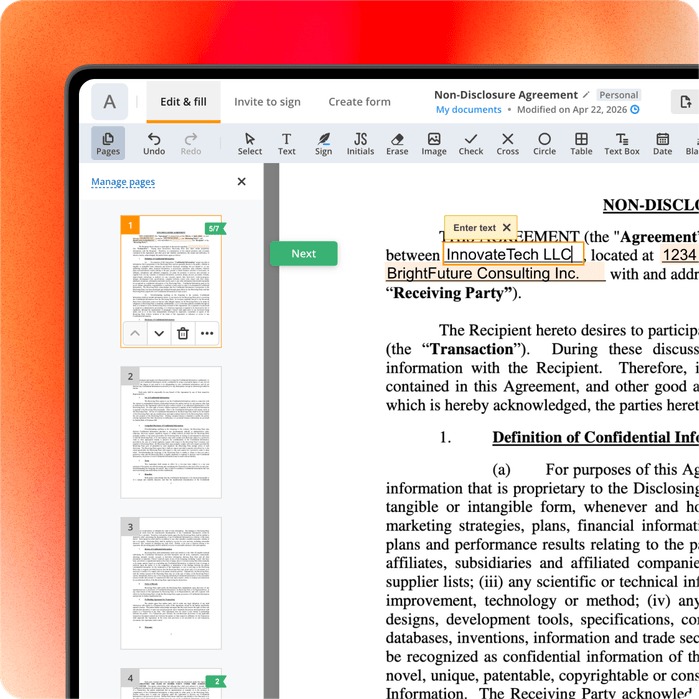
Wipe Out Data in PDF
Wipe out sensitive data in your PDF documents easily with pdfFiller's editing tools.
What is Wiping Out Data in PDF?
Wiping out data in a PDF refers to the process of removing sensitive or unnecessary information from a document. This is crucial for maintaining document security, especially when dealing with confidential information. Common scenarios for data removal include legal documents, invoices, and contracts where sensitive information may be present. By understanding the importance of data wiping, you can ensure that your documents do not expose any private information.
How to Access the Wipe Out Data Feature
To access the wipe out data feature in pdfFiller, follow these steps:
- Open your PDF document in the pdfFiller online PDF editor.
- Locate the wipe tool, typically found in the editing toolbar.
- Ensure your document is in an editable state, which may require unlocking or converting scanned documents.
Steps to Wipe Out Data in Your PDF
Follow these detailed steps to effectively wipe out data from your PDF:
- Select the text or information you wish to remove from the document.
- Click on the wipe tool to erase the selected data.
- Review the document to ensure all sensitive information has been removed.
- Save your changes to maintain the integrity of the edited document.
- Consider using the redact feature for permanent removal of sensitive information.
- Utilize the preview option to check how the document appears post-editing.
- Export the edited PDF to your desired format for sharing or storage.
Common Scenarios for Wiping Out Data
Wiping out data in PDF documents is often necessary in various real-world applications. For instance, legal documents may require data removal to protect client confidentiality. Invoices often contain sensitive payment information that should be erased before sharing with third parties. Contracts may need edits to remove outdated or incorrect information, ensuring that only relevant details remain visible. These scenarios highlight the importance of effective PDF editing tools in maintaining document security.
Limitations of Wiping Out Data in PDF
While wiping out data in PDFs is effective, there are certain limitations to consider. Scanned PDFs may require Optical Character Recognition (OCR) for editing, which can complicate the process. Additionally, there may be limitations on font matching when text is removed, potentially affecting the document's overall appearance. Understanding these constraints can help you better prepare for the data wiping process.
Comparison with Other PDF Editors
When evaluating how pdfFiller stacks up against competitors, consider the following:
Adobe Acrobat: Offers extensive editing features but can be complex for small businesses, with a higher cost and installation requirements.
Foxit: Known for speed and efficiency in PDF editing; however, it has a less user-friendly interface compared to pdfFiller.
Nitro: Provides robust editing tools with a focus on collaboration, but can be overwhelming for users needing simple edits.
Security Measures During Data Wiping
Security is a critical aspect of the data wiping process. pdfFiller handles document security by implementing data encryption during editing, ensuring that your sensitive information remains protected. This focus on document security helps users feel confident when wiping out data in their PDFs, knowing that their information is safeguarded throughout the process.
Next Steps After Wiping Out Data
After successfully wiping out data from your PDF, it is essential to take the following steps:
- Save the edited PDF securely to prevent unauthorized access to the original document.
- Explore sharing options that maintain the security of the edited document, such as password protection.