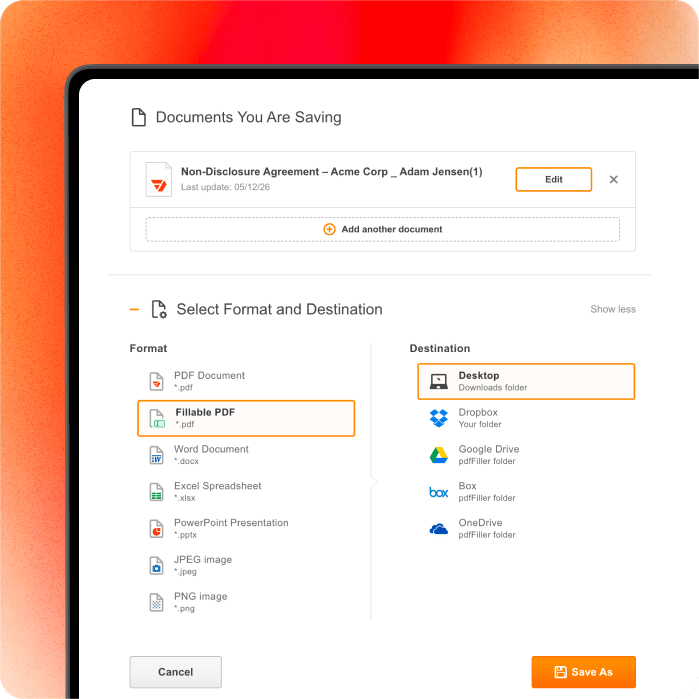
Convert Word to PDF in Google Drive
Convert your Word documents to PDF directly in Google Drive.
What is the Word to PDF Conversion Tool?
The Word to PDF conversion tool is designed to convert Word documents to PDF format efficiently. This tool is ideal for small and medium-sized businesses and professionals who need quick document sharing without the hassle of complex software installations. By using this tool, you can convert Word to PDF directly in Google Drive, ensuring that your documents are easily accessible and shareable. The conversion process is straightforward, allowing you to focus on your work rather than technical barriers. It converts Word documents to PDF format, making it perfect for users needing quick document sharing. No software installation is required, which simplifies the process significantly. This tool avoids complex software solutions, making it an excellent choice for those looking for speed and simplicity.
Why Convert Word to PDF?
Converting Word files to PDF offers several advantages that are essential for effective document management. First, PDFs maintain formatting across devices, ensuring that your documents look the same regardless of where they are viewed. This is crucial for maintaining the integrity of your work. Additionally, PDF format includes enhanced security features, which protect sensitive information from unauthorized access. It is also easier to share and print PDFs, making them a preferred choice for professionals. By converting Word to PDF, you can ensure that your documents are compatible with various devices and platforms, avoiding unreliable file formats that may cause issues during sharing.
How to Access the Convert Tool
- Open Google Drive and locate the Word document you wish to convert.
- Click on the document to open it in Google Docs.
- Select the "File" menu at the top of the page.
- Hover over the "Download" option in the dropdown menu.
- Choose "PDF Document (.pdf)" from the list of available formats.
- Alternatively, access the conversion tool via the Done dropdown menu.
- Use the All Tools card for quick access to the conversion options.
- Find it in the document row's More menu for additional options.
Steps to Convert Word to PDF
- Open your Word document in Google Drive by navigating to your files.
- Select the conversion option from the "File" menu.
- Choose "Download" and then select "PDF Document (.pdf)" to initiate the conversion.
- Wait for the conversion process to complete, which usually takes just a few seconds.
- Once the conversion is complete, the PDF file will automatically download to your device.
- Check your downloads folder to locate the newly created PDF file.
- Open the PDF to ensure the formatting and content are preserved.
- Share the PDF via email or cloud services as needed.
Supported Output Formats
The primary output format for the conversion tool is PDF, which is widely accepted and used for document sharing. In addition to PDF, other formats that can be converted include Word documents, Excel spreadsheets, and images. This versatility ensures compatibility with various devices and applications, allowing for seamless document management across different platforms. It is important to note that while PDF is the main format, the ability to convert to other formats enhances the tool's utility for diverse needs.
Input File Types for Conversion
The conversion tool accepts various input file types, primarily focusing on .docx and .doc files. Additionally, it supports other formats such as .xls, .ppt, and images, making it a flexible option for document conversion. You can upload these files directly from Google Drive, which simplifies the process and saves time. This broad file type acceptance ensures that users can convert a wide range of documents without facing limited file support issues.
Conversion Quality Expectations
When using the conversion tool, you can expect high-quality results, especially for native PDFs, which convert with high fidelity. However, scanned PDFs may require Optical Character Recognition (OCR) for text extraction, which can affect the quality of the output. It's important to note that layout fidelity may vary with complex documents, so reviewing the converted file is advisable to ensure that all elements are correctly rendered. This understanding of conversion quality helps set realistic expectations for users.
Comparison with Other Export Methods
When comparing the conversion tool with other export methods, such as the Save As and Download options, there are notable differences. The direct conversion method offers benefits like maintaining formatting and ensuring compatibility across devices. In contrast, traditional methods may not provide the same level of fidelity and can lead to issues with document integrity. Additionally, compression methods may limit the quality of the output, making the conversion tool a more reliable choice for professionals who require consistent results.
Real-World Scenarios for Conversion
There are several practical applications for the Word to PDF conversion tool that highlight its usefulness in various business scenarios. For instance, converting contracts for legal sharing ensures that all parties receive documents in a secure and unalterable format. Additionally, preparing reports for client presentations in PDF format allows for professional and polished delivery. Creating PDFs for official submissions is another common use case, ensuring that documents meet required standards and maintain their formatting. These specific examples demonstrate the tool's effectiveness in real-world situations.
Browser and Device Compatibility
The conversion tool is designed to work on all major browsers, ensuring that users can access it regardless of their preferred web platform. It is compatible with both Mac and Windows devices, providing flexibility for users in different environments. Furthermore, mobile access is available without the need for installation, allowing professionals to convert documents on the go. This broad compatibility ensures that users can rely on the tool without facing limitations based on their device or browser choice.
Next Steps After Conversion
After converting your document to PDF, there are several important next steps to consider. First, you may want to edit the PDF if needed, using tools that allow for modifications. Sharing the PDF via email or cloud services is straightforward, enabling quick distribution to colleagues or clients. Finally, it is essential to store the PDF securely in your drive to ensure easy access in the future. These steps help optimize your document management workflow after conversion.
How Does pdfFiller Compare?
Adobe Acrobat offers extensive features but requires installation and is costly. This tradeoff makes it more complex than necessary for simple conversions.
Smallpdf provides similar functionality but lacks the seamless integration with Google Drive, making it less efficient for users already in the Google ecosystem.
ilovepdf has free options available but comes with limitations on file size and features, which may not meet the needs of users requiring frequent conversions.